
The Android smartphone app “PocketRxTx” can select and tune WebSDR sites over the Internet. I will not be covering that feature here; please go to https://www.yo3ggx.ro/soft.html for full information on this feature and on the many other projects that Dan Toma, Y03GGX, has created.
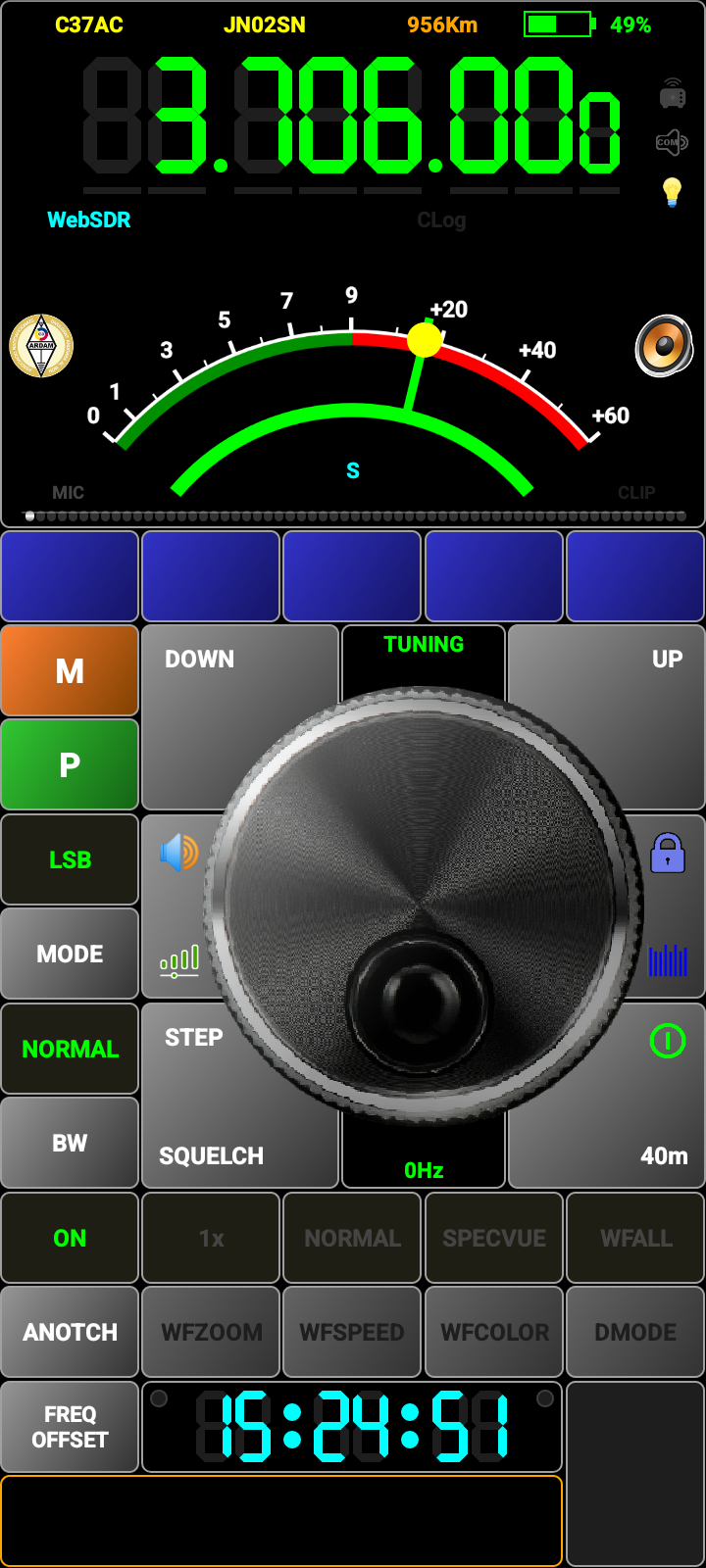
The side of PocketRxTx which interests me is the radio remote control side, which Dan calls “Direct CAT”, but in fact it is a lot more than just CAT commands, as audio is also transferable when using the network mode. Indeed, the app has three modes: USB direct connection to the radio, Bluetooth connection to the radio, both providing the full radio control while allowing users to be up to 10 metres away without any cables and Network.
What I do need to point out is the flexibility of the program, which has been available for probably 10 years and has been getting better with every version. As I write this, version 4 is about to be released, but I have been testing beta versions from Dan since version 2. Flexibility – while the app supports nearly all well-known radios, Yaesu, Icom, Kenwood, Xiegu and many others, should you have a radio that is currently not supported, you can take an existing configuration file and modify it yourself to work with your radio. Once you have done that, you can send it in to Dan, who will add it to the central database, so if someone else has your model of radio, they can use your file. In the same way, if something in the CAT controls does not work as it should, you can also correct the command in the default radio configuration file and send it in to replace the faulty file for others.
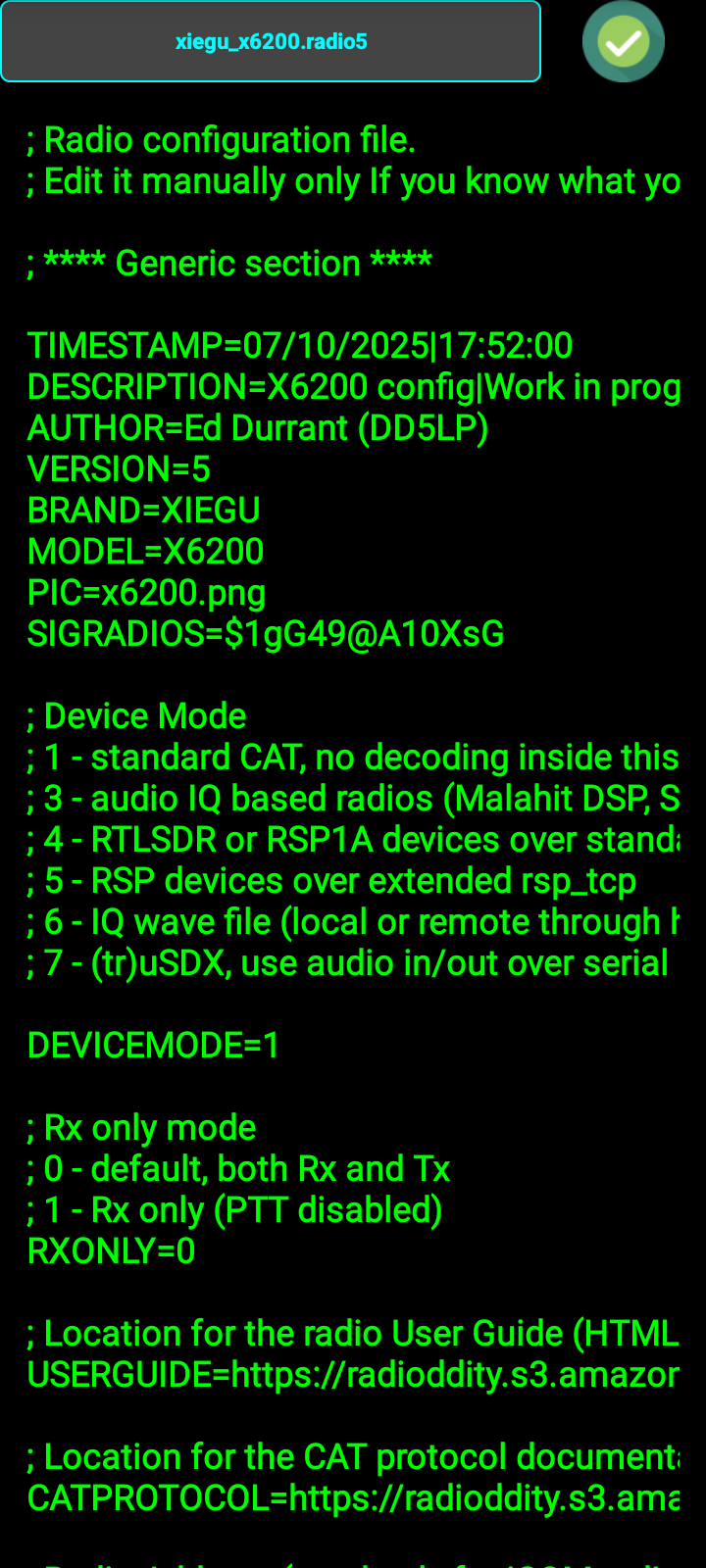
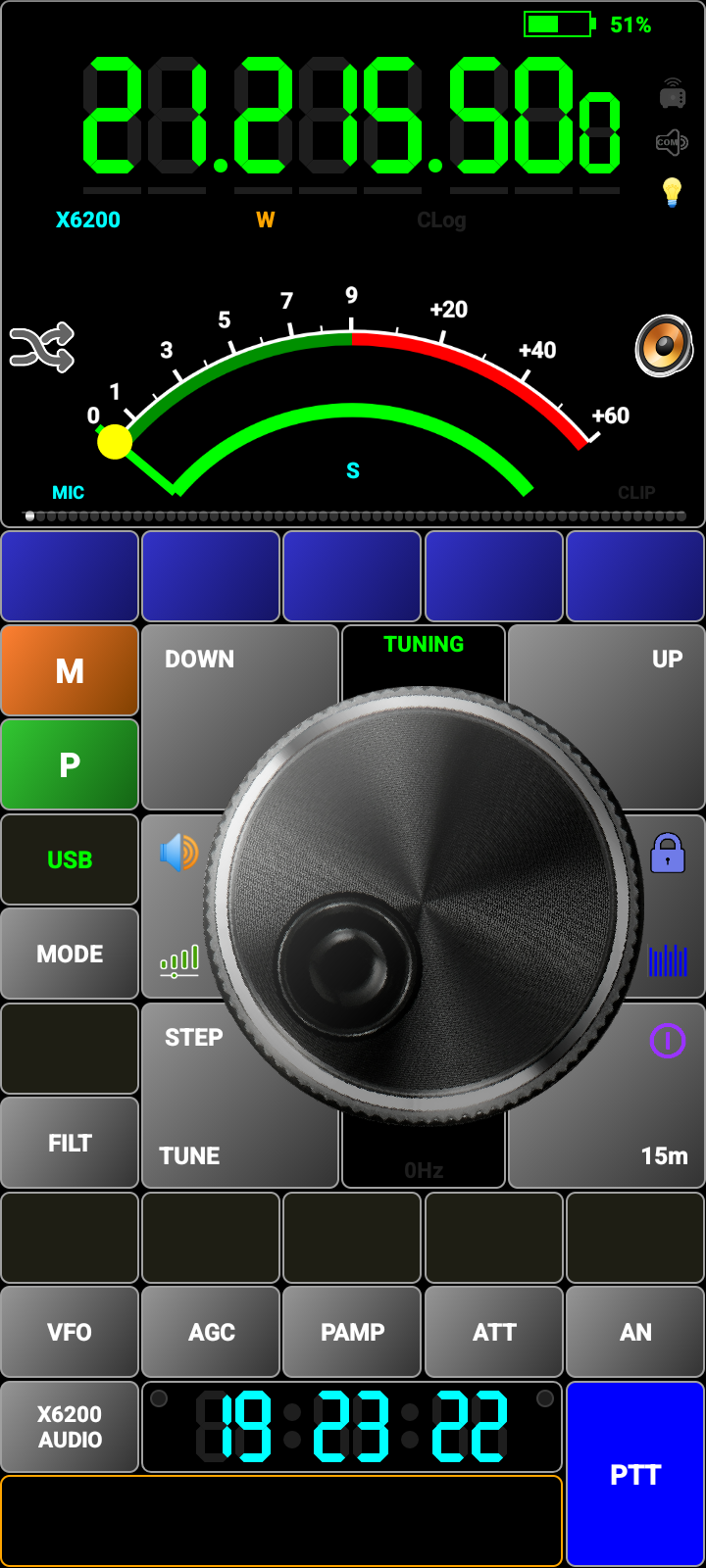
The most interesting connection is over the network (LAN, WLAN, Internet), where complete control of the radio is possible from your Android Smartphone, including being able to hear received audio and modulate the radio from the phone so giving total independence from physical boundaries. While the most extreme form of this is to control your radio at home while you are in another country but even in the situation where the radio is perhaps in a location that would disturb the family if you wanted to take part in a contest late in the evening, you could set this up, turn the volume down on the radio and go to a different part of your house where the sleeping family wont hear you and operate from there!
As with any remote control solution, some level of network understanding is needed – the sequence of steps in the list below represents how I needed to set up my solution. While the actual location of port forwarding in your home router will probably be different, the data flow here is the same as needed by all remotely controlled ham radio stations.
1. PocketRxTx v4 Android App on Android Smartphone.
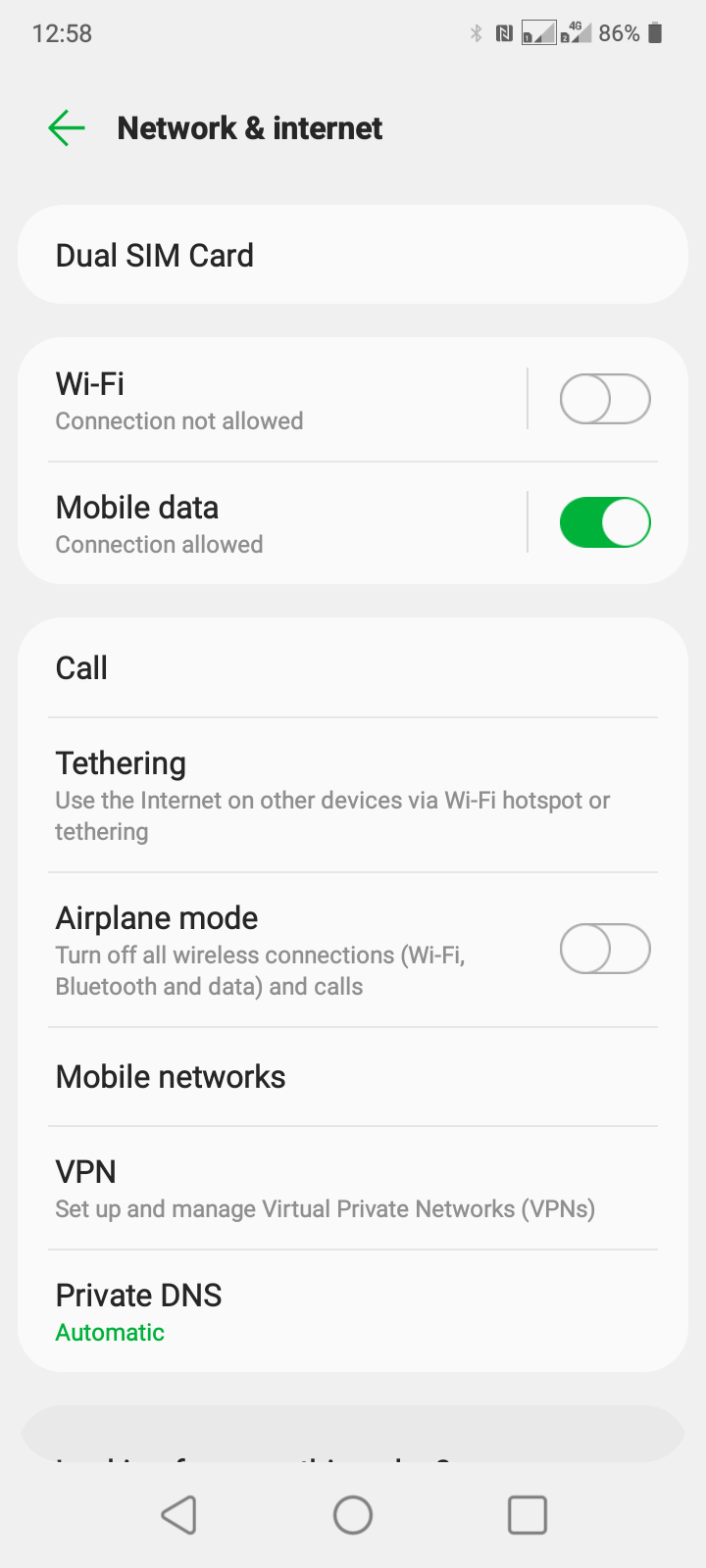
2. Sends and receives data over a cell Phone 4G LTE Network (Wifi turned off in phone for this routing – if only running remote within your own home LAN segment, leave WiFi on, and ignore the following steps up to point 9.)
3. From the 4G cell link, data passes into the Internet from my Cell phone provider’s network.

4. Guided by my Dynamic Name Service domain name (you will need one of these; they are free), e.g. xxxxxxxxxx.ddns.net:3390 (I tried initially TCP port 5001, but either my cell phone provider, ISP or my Router appears to block that, so I changed to 3390, which then worked).
5. The data reaches the external IP address of my Internet Service Provider (hence the use of Dynamic DNS – as this external IP address can change).
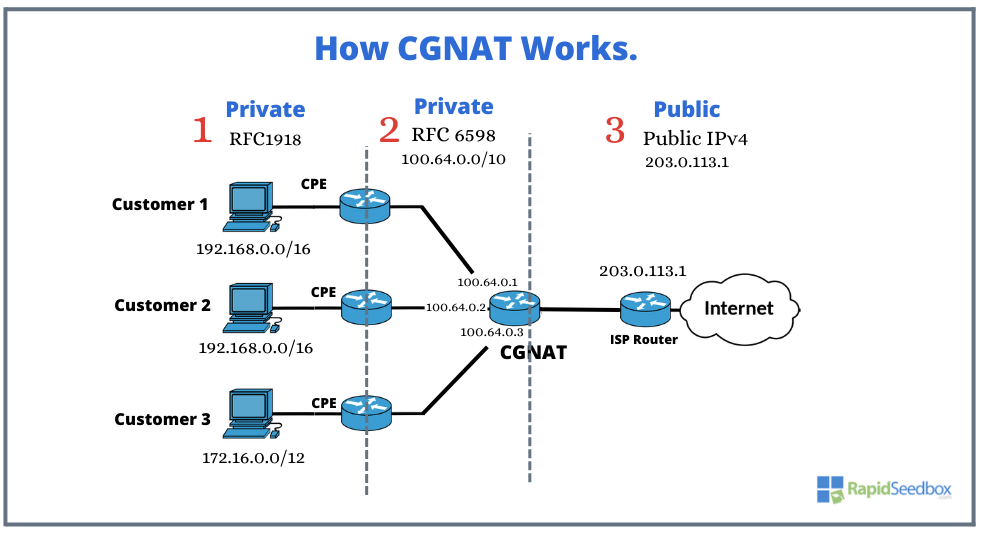
6. Data passes through the ISP’s internal Carrier-Grade NAT (CGNAT) fibre network (for this to work, you need your ISP to allocate a permanent link for you within their network – mine did so at no extra charge). (Note: if you do not have this possibility of circumventing CGNAT, using a VPN on your home network, such as 44NetConnect provided for free to radio hams by ARDC is an alternative solution. With that, you can also obtain your own 44 network address range on the Internet.)
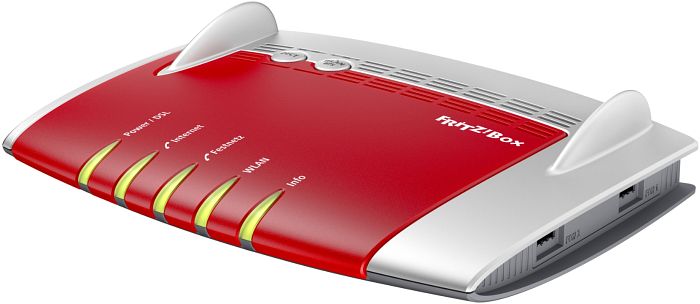
7. The data arrives via optical fibre to my home and my (Fritz!Box) router.
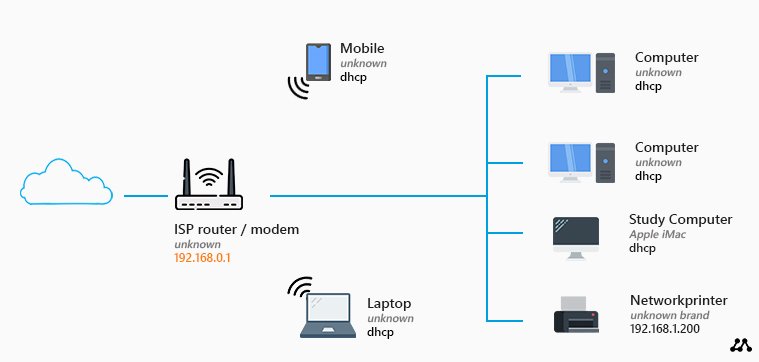
8. Through the port forwarding settings in my home router, any TCP/IP traffic on port 3390 is sent to my Windows PC, which has a static IP address in my home network.
9. The data reaches my Windows 11 PC, where another of Dan’s programs, “PRxTxServer4”, is listening on port 3390 for any incoming data. (This program is available at https://www.yo3ggx.ro/soft.html )

10. PRxTXSrvr4 communicates with serial and audio data to and from the X6200 over a USB cable plugged into the USB-C client port on the radio.

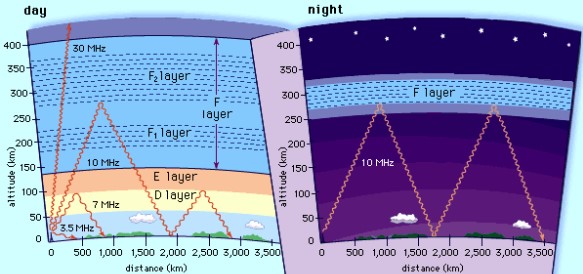
11. CAT commands from the Android app (e.g. tune receiver up 1 kHz) are sent to the X6200, and a response is sent back to the Android App to say the command has been completed. At the same time, an audio link is in place so that the audio from the X6200 transceiver is heard through the Android phone’s loudspeaker or headset. Once the PTT button in the smartphone app is pressed, the radio is put into transmit mode and audio from the smartphone’s microphone or headset is sent to the X6200 via this route and then transmitted out to the radio’s antenna …. from here you are at the mercy of the radio propagation conditions ….
The response time of commands is sub-1-second as TCP is used rather than UDP. The result is a smooth operation of the radio “from afar”. Given the fact that the X6200 uses Linux internally, it may even be possible to operate the Linux pRxTxSRVR package from within the radio (this has to be tested), meaning the need for a Windows PC could be removed. As it is, in this version of the program, a second Smartphone can already perform the same role as the Windows PC. Being such a small radio, this brings other ideas – if a sealed, waterproofed box with a 12v supply was available at the top of a tower or on the roof of a high building, it would be possible to have the radio + Smartphone-server in the box and operate with a very short cable to the antenna with access to operate from anywhere over the Internet (security is handled via a server password and knowing the ISP’s allocated IP address and port number in use (which is a free choice of the person installing the solution).
The reason I was originally interested in this app was that I could not read the fading display in my Xiegu X108G radio in bright sunlight; however, the (connected over a USB cable) Smartphone display was completely visible and only the needed controls are shown in the app on the phone. This may still be of interest to the growing number of POTA, SOTA, HEMA, BOTA, GMA, COTA etc. portable activators these days.
The “Lite” version of the PocketRxTx app (which has adverts) is free, whereas the PRO version only costs a few Euros. Considering the amount of time and work invested by Dan in this solution, I always recommend people to buy the PRO version. The pRXTxSRVER4 server app is free to download from Dan’s website. (PLEASE WAIT UNTIL VERSION 4 IS RELEASED IN THE NEXT FEW WEEK’S AS THERE ARE MAJOR IMPROVEMENTS OVER EARLIER VERSIONS).
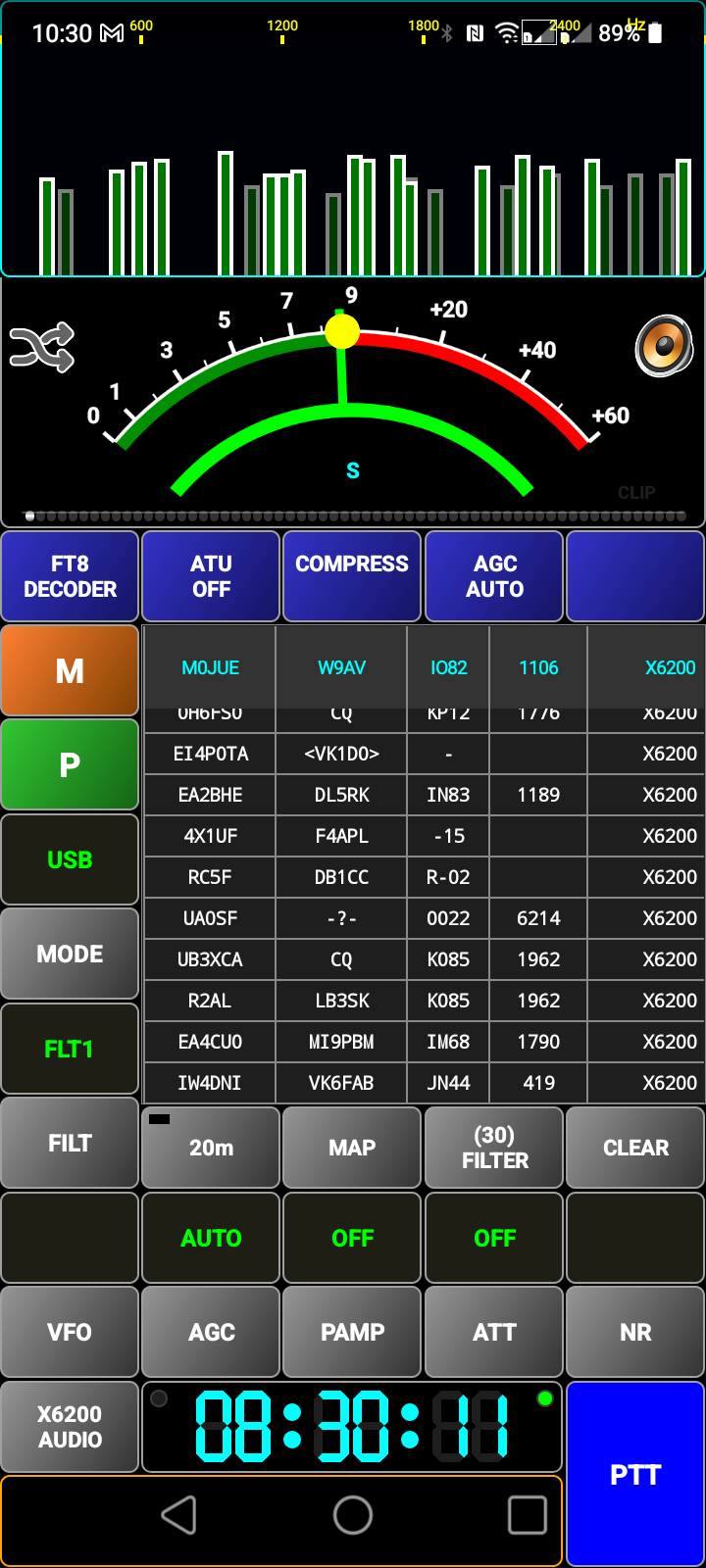
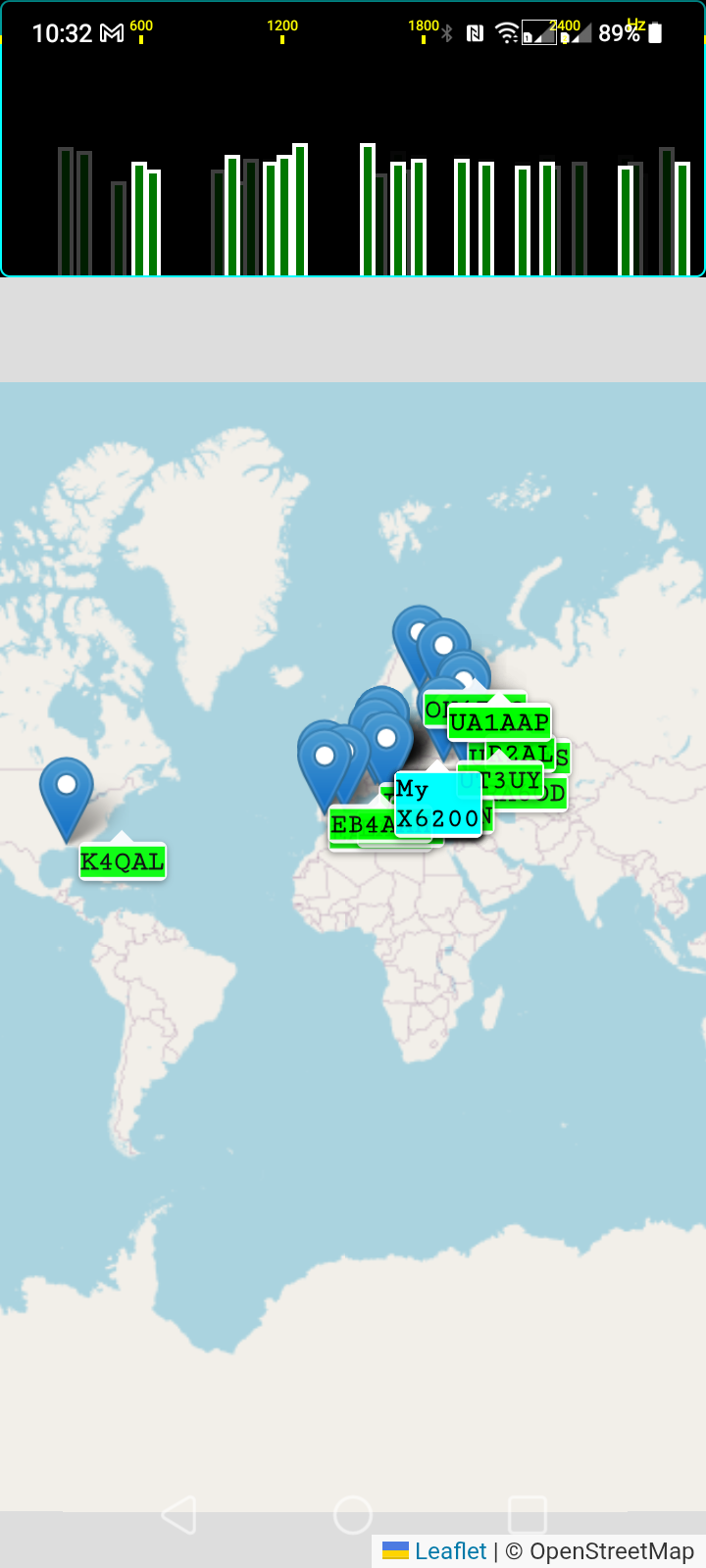
For those who are interested, version 4 of the app also includes an FT8 decoder and mapping of the received stations:
I hope you found this article interesting – 73 Ed DD5LP.
 DD5LP / G8GLM / VK2JI blog
You must be logged in to post a comment.